


You’re Probably Sitting on Free Cloud Storage and Don’t Even Know It
Ever lost an important document or photo after your phone got formatted, stolen, or crashed? That sinking feeling is unforgettable.
Now imagine a simple app that quietly backs up your photos, documents, and receipts — and lets you access them anywhere, even if your phone disappears. (How to Use Google Drive Like a Pro on Your Phone – Tech Basics)
That’s Google Drive, and every Android user in Nigeria already has it — many just don’t know how powerful it is.
Today, you’ll learn how to use Google Drive like a pro, save storage space, share files securely, and work more efficiently — all from your phone.

☁️ 1. What Exactly Is Google Drive (and Why Should You Care)?
Google Drive is your personal cloud storage — meaning your files live safely online instead of only on your device.
You get 15GB of free storage linked to your Gmail account. This space covers Drive, Google Photos, and Gmail combined.
So even if you lose your phone, your files stay safe in the cloud — ready to download again anytime, anywhere.

💡 Gixa Tip: Think of Drive as your digital flash drive, but smarter, safer, and always with you.
🧠 2. How to Access Google Drive on Your Phone
If you use Android, you probably already have the Drive app pre-installed.
If not, download it here 👉 Google Drive on Play Store
To open:
- Sign in with your Gmail account
- Tap the + (plus) icon to upload or scan files
- Tap the search bar to find files quickly
✅ For iPhone users: You can also install Drive from the App Store.
📤 3. How to Upload Files, Photos, and Videos
Uploading to Google Drive is simple:
- Open the Drive app
- Tap the + button → Upload
- Choose files from your phone (documents, photos, videos, etc.)
💡 Pro Tip: You can also upload scanned documents — just choose “Scan” and take a photo of your paper document. Drive automatically turns it into a clear PDF.
See: Why Your Phone Battery Dies Fast — and How to Fix It for Good
📂 4. Organize Like a Pro — Create Folders
A messy Drive is just as stressful as a messy gallery. Keep things neat by creating folders.
Steps:
- Tap the + button → Folder
- Name it (e.g., “Receipts 2025”, “Work Projects”, or “Business Docs”)
- Move files into folders by long-pressing them → “Move to”
🧩 Example Folder Ideas for Nigerians:
- NEPA Bills & Utility Receipts
- CVs & Certificates
- Jumia Orders / Business Documents
- Church / NGO Projects
🔗 5. Share Files Safely — No WhatsApp Needed
Instead of clogging WhatsApp with huge documents or videos, just share the Drive link.
To share:
- Tap the file → Tap Share
- Add an email address or copy a shareable link
- Choose access level: View only, Comment, or Edit
This is perfect for work submissions, collaborations, or sending proposals to clients without data-heavy attachments.
👉 Example: “Here’s the file on Drive: drive.google.com”
💬 Quote:
“Stop sending 25MB PowerPoints on WhatsApp — share smarter with Google Drive.” — Gixa.ng
🧠 6. Access Files Offline (Yes, Without Internet)
Nigeria’s internet can be unpredictable. Thankfully, Drive lets you mark files for offline access.
To enable:
- Tap the file → Tap three dots → Make available offline
Now you can open that file anytime — no data, no wahala.
When you’re back online, any changes automatically sync to the cloud.
See: 10 Hidden Android Tricks Every Nigerian Should Know in 2025
🕵️♀️ 7. Back Up WhatsApp or Documents Automatically
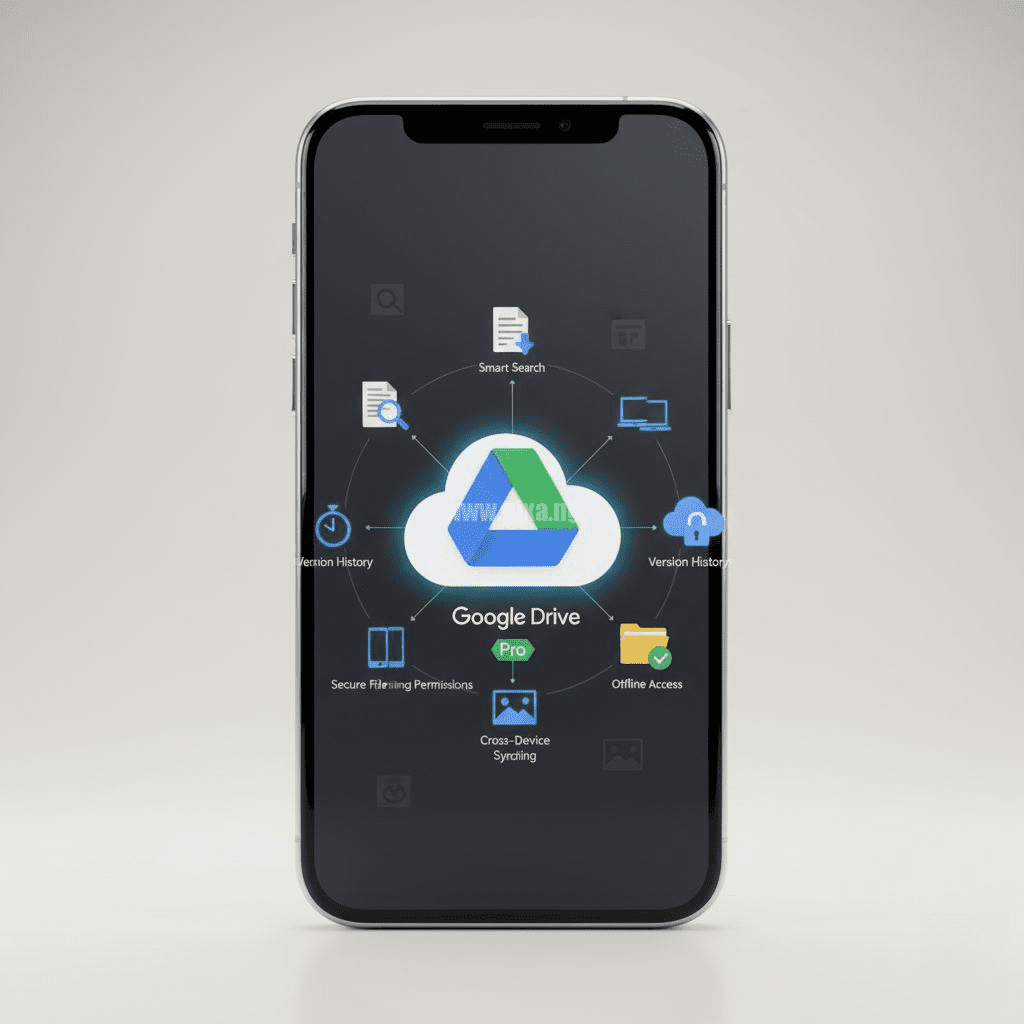
Google Drive also backs up WhatsApp chats, settings, and photos automatically (if enabled).
To check:
- Open WhatsApp → Settings → Chats → Chat Backup
- Ensure Google Drive backup is turned on
You can also enable backup for your phone’s contacts, app data, and messages via Settings → Google → Backup.
✅ Result: Even if you lose your phone, you won’t lose your memories or work.
🧹 8. Free Up Phone Space After Uploading
After backing up photos or documents to Drive, delete the local copies to free up storage.
- Open Drive → Tap uploaded file → Confirm it’s working
- Go back to Gallery/File Manager → Delete original
You just saved double storage space while keeping everything safe.
👉 Pair this with Files by Google for automatic cleanup.
🔐 9. Keep Your Drive Secure
Your files deserve protection — especially if you store IDs, certificates, or financial info.
Security tips:
- Always use 2-Step Verification on your Google Account
- Don’t share “Edit” access with people you don’t fully trust
- Regularly check Who has access under file sharing settings
📦 Bonus: You can even lock your phone’s Drive app with fingerprint or PIN (on most Android devices).
See: How to Free Up Space on Your Phone Without Deleting WhatsApp
💼 10. Use Drive for Work & Collaboration
Drive integrates beautifully with other Google tools — like Docs, Sheets, and Slides.
This means you can create, edit, and share documents directly from your phone.
For example:
- Write a report in Google Docs
- Save business expenses in Sheets
- Present a pitch deck with Slides
All sync automatically in real-time — perfect for freelancers, SMEs, and students working remotely.
💬 Final Thoughts
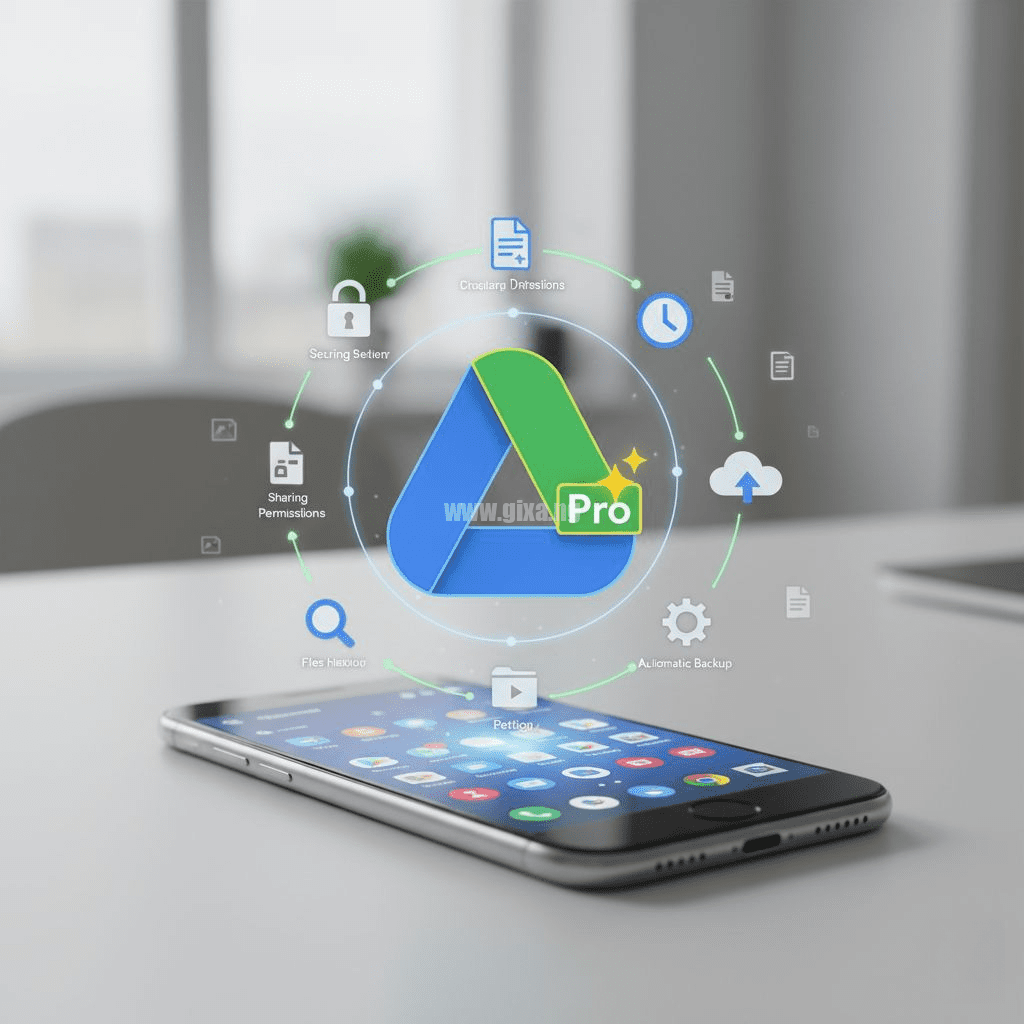
Google Drive is more than cloud storage — it’s a digital life-saver for Nigerians juggling files, businesses, and limited phone storage.
Whether you’re saving receipts, sharing proposals, or backing up family photos, Drive ensures your work stays safe, accessible, and organized.
“In 2025, smart Nigerians aren’t buying bigger phones — they’re learning how to use the cloud.” — Gixa.ng


